Author: skip6gox7f69

  • surya-rs

    surya-rs

    Build Crates.io Version

    Rust implementation of surya, a multilingual document OCR toolkit. The implementation is based on a modified version of Segformer, OpenCV, and donut transformer.

    Please refer to the original project for more details on licensing of the weights.

    Roadmap

    This project is still in development, feel free to star and check back.

    • image input pre-processing
    • detection – segformer
    • detection – weights loading
    • detection – heatmap and affinity map
    • detection – bboxes
    • detection – image splitting and stitching
    • recognition – swin encoder
    • recognition – MoE MBart
    • recognition – donut transformer loading
    • benchmark
    • quantifications

    How to build and install

    Setup rust toolchain if you haven’t yet:

    # visit https://rustup.rs/ for more detailed information
    curl --proto '=https' --tlsv1.2 -sSf https://sh.rustup.rs | sh

    Install llvm and opencv (example on Mac):

    brew install llvm opencv

    Build and install the binary:

    # run this first on Mac if you have a M1 chip
    export DYLD_FALLBACK_LIBRARY_PATH="$(xcode-select --print-path)/usr/lib/"
    # run this first on other Mac
    export DYLD_FALLBACK_LIBRARY_PATH="$(xcode-select --print-path)/Toolchains/XcodeDefault.xctoolchain/"
    # optionally you can include features like accelerate, metal, mkl, etc.
    cargo install --path . --features=cli

    The binary when built does not include the weights file itself, and will instead download via the HuggingFace Hub API. Once downloaded, the weights file will be cached in the HuggingFace cache directory.

    Check -h for help:

    Surya is a multilingual document OCR toolkit, original implementation in Python and PyTorch
    
    Usage: surya [OPTIONS] <IMAGE>
    
    Arguments:
      <IMAGE>  path to image
    
    Options:
          --detection-batch-size <DETECTION_BATCH_SIZE>
              detection batch size, if not supplied defaults to 2 on CPU and 16 on GPU
          --detection-model-repo <DETECTION_MODEL_REPO>
              detection model's hugging face repo [default: vikp/surya_det]
          --weights-file-name <WEIGHTS_FILE_NAME>
              detection model's weights file name [default: model.safetensors]
          --config-file-name <CONFIG_FILE_NAME>
              detection model's config file name [default: config.json]
          --non-max-suppression-threshold <NON_MAX_SUPPRESSION_THRESHOLD>
              a value between 0.0 and 1.0 to filter low density part of heatmap [default: 0.35]
          --extract-text-threshold <EXTRACT_TEXT_THRESHOLD>
              a value between 0.0 and 1.0 to filter out bbox with low heatmap density [default: 0.6]
          --bbox-area-threshold <BBOX_AREA_THRESHOLD>
              a pixel threshold to filter out small area bbox [default: 10]
          --recognition-batch-size <RECOGNITION_BATCH_SIZE>
              recognition batch size, if not supplied defaults to 8 on CPU and 256 on GPU
          --recognition-model-repo <RECOGNITION_MODEL_REPO>
              recognition model's hugging face repo [default: vikp/surya_rec]
          --output-dir <OUTPUT_DIR>
              output directory, under which the input image will be generating a subdirectory [default: ./surya_output]
          --polygons
              whether to output polygons json file
          --image
              whether to generate bbox image
          --heatmap
              whether to generate heatmap
          --affinity-map
              whether to generate affinity map
          --device <DEVICE_TYPE>
              device type, if not specified will try to use GPU or Metal [possible values: cpu, gpu, metal]
          --verbose
              whether to enable verbose mode
      -h, --help
              Print help
      -V, --version
              Print version
    

    You can also use this to control logging level:

    export SURYA_LOG=warn # or debug, warn, etc.

    Library

    This lib is also published as a trait for other rust projects to use.

    Visit original content creator repository
  • biblioteca-app

    📚 Biblioteca App

    Biblioteca App é um pequeno sistema que simula um gerenciamento de uma biblioteca, como o cadastro de livros, reservas e devoluções. Possui autenticação síncrona com o banco de dados, ou seja, é necessário que o usuário esteja previamente cadastrado no banco de dados para conseguir visualizar a página inicial da Biblioteca App.

    Funcionalidades do sistema

    • Cadastrar livros, reservas e usuários
    • Editar livros, reservas e usuários
    • Remover livros, reservas e usuários
    • Devolver livros

    Recursos utilizados

    • IDE IntelliJ IDEA 2022.2 (Community Edition)
    • Linguagem Java
    • Framework Spring
    • Banco de dados MySQL
    • Postman v10.13.5

    Endpoints

    O sistema possui uma única tela (página inicial), sendo apenas possível cadastrar livros, reservar ou devolver. Caso queira executar alguma outra ação listada nas funcionalidades do sistema, como cadastrar livros por exemplo, é possível utilizando a API Postman. No arquivo localizado em src/main/resources/templates/Biblioteca App.postman_collection.json, é possível visualizar todos os endpoints disponíveis no sistema. O arquivo também pode ser importado no Postman.

    Autenticação

    Como já informado no início, o sistema requer autenticação e há dois possíveis métodos de autenticação no sistema:

    1. utilizando a autenticação Basic Auth, que requer um usuário e senha cadastrados previamente no banco de dados,
    2. utilizando a autenticação por JWT, o Bearer Token, que também requer um usuário e senha cadastrados previamente no banco de dados, porém existe um tempo de validade para a autenticação.

    Basic Auth

    Criar um usuario para autenticação. Abaixo segue o SQL para criar o usuário adm com a senha adm na tabela usuario:

    INSERT INTO biblioteca_db.usuario(data_criacao, data_nascimento, nome, ativo, documento_identificacao, email, senha, login)
    VALUES(null, null, null, 1, null, null, '$2a$12$/3rVvVLUmhfgVzPSmdec0OR5OClQAmXltU0vUPMlQDIN0jsRP94oa', 'adm');

    Bearer Token

    Para autenticar no sistema usando o jwt, acessar o endereço http://localhost:8080/login (POST). O retorno será um json como mostrado abaixo:

    {
        "token": "eyJhbGciOiJIUzI1NiJ9.eyJzdWIiOiJuYXRhbGlhLnN1enVraSIsImV4cCI6MTY4NTUwNTM2Mn0.wMa83vD66PYH-UZyvrKtOyz5Uv7HHTtyx1f2F0coUBo",
        "validade": "480"
    }

    O token tem validade de 8 horas e esse período pode ser alterado modificando a propriedade security.jwt.expiration no arquivo application.properties. O valor numeral deve ser informado em minutos. Para usar o token com o Postman, adicionar na configuração “Headers” do endpoint desejado:

    Key: Authorization
    Value: Bearer eyJhbGciOiJIUzI1NiJ9.eyJzdWIiOiJuYXRhbGlhLnN1enVraSIsImV4cCI6MTY4NTUwNTM2Mn0.wMa83vD66PYH-UZyvrKtOyz5Uv7HHTtyx1f2F0coUBo
    

    Autenticação sem validação no banco de dados

    Também é possível remover essas duas configurações de autenticação, e incluir um outro método mais simples no sistema que não requer validação com o banco de dados, basta adicionar a dependência do próprio spring. Esta autenticação consiste em um usuário padrão e uma senha pré-definida e já possui interface própria do spring. Para utilizar essa autenticação, basta incluir a seguinte dependência no arquivo pom.xml:

    <dependency>
        <groupId>org.springframework.boot</groupId>
        <artifactId>spring-boot-starter-security</artifactId>
    </dependency>
    

    O usuário padrão é user e a senha aparece no console da IDE desta forma: Using generated security password: cd2ed133-f34e-4951-85e3-9fccaa8a3e915

    Executar Biblioteca App usando arquivo jar

    Para executar o sistema na sua máquina, seguir os seguintes passos:

    1. Fazer o download deste projeto em algum diretório local,
    2. Abrir algum terminal de comando da sua máquina (Prompt de Comando, Windows PowerShell),
    3. Executar o comando mvn clean package,
    4. Executar o comando cd target,
    5. Executar o comando java -jar bibliotecaApp-0.0.1-SNAPSHOT.jar,
    6. Aguardar pela mensagem Started BibliotecaAppApplication in n seconds,
    7. Acessar o endereço http://localhost:8080. Enquanto o terminal de comando estiver aberto, a aplicação ficará em execução, caso contrário, a aplicação será encerrada.

    Visit original content creator repository

  • pli

    pli

    create CLI for any project within a few minutes with Pli!
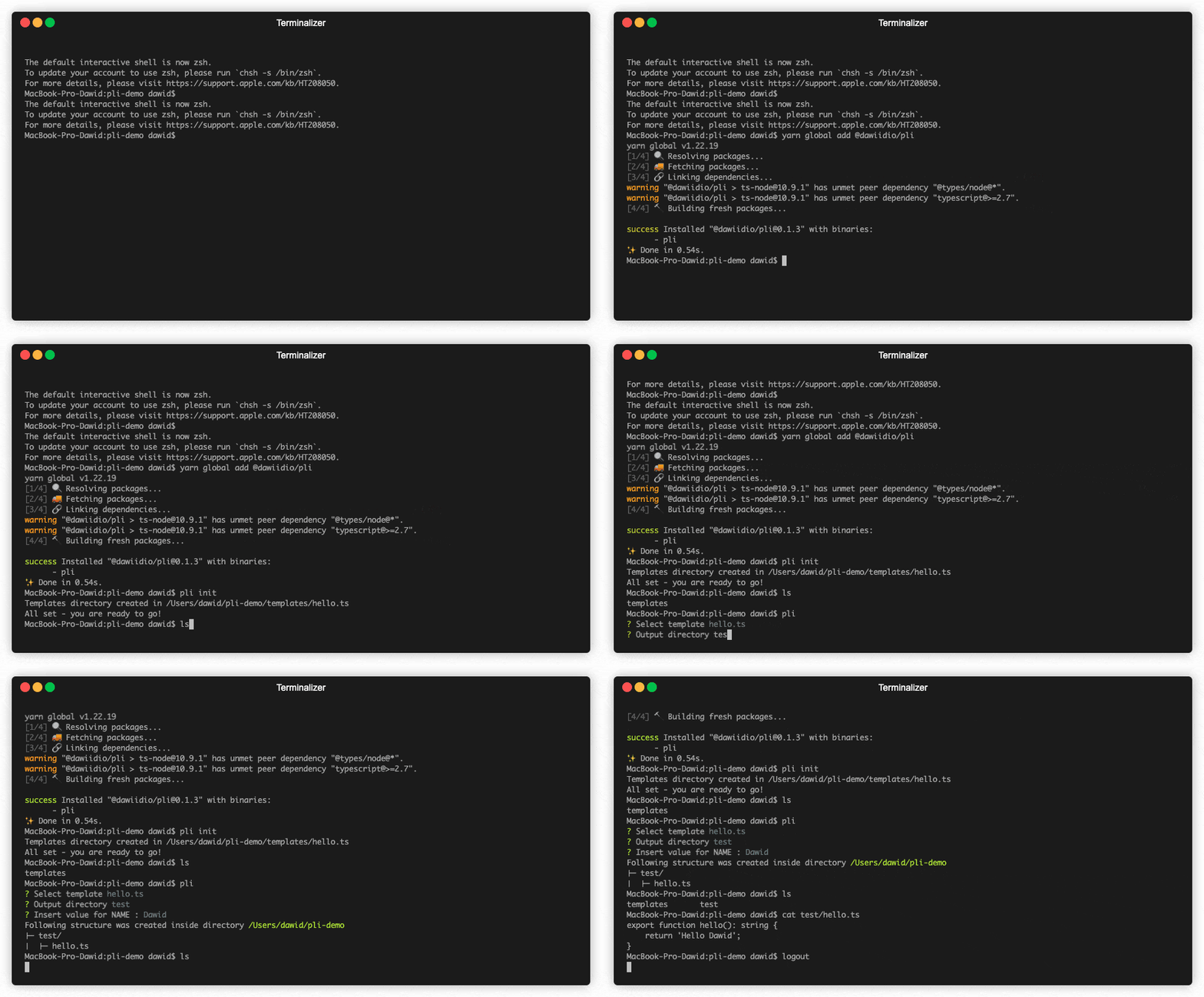
    Installation and usage

    pli-terminal-gif

    Global installation is recommended

    npm install -g @dawiidio/pli 
    # or 
    yarn global add @dawiidio/pli
    npm install @dawiidio/pli 
    # or
    yarn add @dawiidio/pli 

    You can use it also via npx

    npx @dawiidio/pli

    Usage

    init pli in current directory

    # by default pli init will produce templates directory with sample template file
    pli init
    
    # config file is optional, but if you want to create
    # more complex templates it may be useful
    # to generate it run
    pli init -c
    
    # by default pli init will produce typescript config file and examples, if you prefer js use
    pli init -c -t js

    the above command creates templates directory and sample template file in it, which looks like this:

    export function hello() {
        return 'Hello $NAME$';
    }

    as you can see we have $NAME$ which defines pli’s variable. This variable will be extracted and prompted to fill with value after selecting template, you can now run pli command in current directory, pli will prompt you with below message:

    ? Select template (Use arrow keys)
    ❯ hello.js 
    

    select template hello.js by pressing enter

    ? Select template hello.js
    ? Output directory  <-- type directory where file should be saved or leave it empty to save in current
    ? Insert value for NAME :  <-- type value for name, e.g. David
    

    when last variable is filled with value pli starts its magic and produces result file, after successful creation process you will see summary like below:

    Following structure was created inside directory /your/current/working/directory
    ├─ hello.js
    

    That’s it! You can see the results by opening file. For example

    cat hello.js

    should return

    export function hello() {
        return 'Hello David';
    }

    cli

    pli run
    
    runs cli, default command
    
    Commands:
      pli run   runs cli, default command                                  [default]
      pli init  initializes pli in current directory
    
    Options:
          --help                Show help                                  [boolean]
          --version             Show version number                        [boolean]
      -c, --config              path to config file                         [string]
      -d, --dry                 dry run, results will not be saved         [boolean]
      -l, --logLevel            log level. Available options: error, warn, info,
                                debug. Multiple options separated by pipe sign "|"
                                                         [string] [default: "error"]
      -o, --allowOverwriting    allow overwriting output files while committing data
                                to storage                                 [boolean]
      -t, --templatesDirectory  override templates directory
                                                    [boolean] [default: "templates"]


    Examples

    The above example is just the simplest one, you can create more sophisticated templates with many directories, variables and files. See examples for more

    Config file

    to create more powerful tools and templates the config file may be needed, run

    # for typescript config file run
    pli init -c
    # for javascript config file run
    pli init -c -t js

    the above command creates pli.config.js or pli.config.ts file in current directory, now this is the time to create more complex templates, we will create a React component template with support for css modules.

    run

    mkdir templates/\\$NAME$
    touch templates/\\$NAME$/\\$NAME$.tsx 
    touch templates/\\$NAME$/\\$NAME$.module.css

    in templates/$NAME$/$NAME$.tsx file add

    import React, { FunctionComponent } from "react";
    import styles from './$NAME$.module.css';
    
    interface $NAME$Props {
    
    }
    
    export const $NAME$:FunctionComponent<$NAME$Props> = ({  }) => {
    
        return (
            <div className={styles.$NAME$Root}>
                Component $NAME$
            </div>
        )
    };

    now we have a template for React component, but we want to have support for css modules, so we need to add css file for it.

    in templates/$NAME$/$NAME$.module.css file add

    .$NAME$Root {
    
    }

    now we have a template files for React component with css module support, and it will work just fine now, but we can make it even better.

    in pli.config.ts file add

    import { Template, IConfig, TemplateVariable, ITemplateVariable, IVariableScope } from '@dawiidio/pli';
    
    const config: IConfig = {
        templates: [
            new Template({
                // readable name, instead of "$NAME$" you will see "React Component" in cli
                name: 'React Component', 
                // if you want to extend from existing template in templates directory you need to provide its name
                id: '$NAME$',
                // all will be generated relative to src/components directory
                defaultOutputDirectoryPath: 'src/components',
                variables: [
                    new TemplateVariable({
                        // variable name, it will be replaced with value in template files
                        name: 'NAME',
                        // you can pass default value for our variable
                        defaultValue: 'MyComponent',
                        // let's add some validation for our variable
                        validate: (value: string) => {
                            if (value.length < 3) {
                                throw new Error('Name must be at least 3 characters long');
                            }
                        }
                    }),
                    new TemplateVariable({
                        // variable name, it will be replaced with value in template files
                        name: 'DIRNAME',
                        // this variable will subscribe from NAME variable, so it will be updated when NAME is updated
                        defaultValue: '$NAME$',
                        ui: {
                            // you can also hide variables from user, so it will be used only for internal purposes
                            hidden: true
                        }
                    }).pipe(
                        // you can pipe variable value and trnasform it as you want, 
                        // in this case we will replace all spaces with dashes
                        // and then we will convert all letters to lowercase
                        // so if we type "My Component" as NAME variable value
                        // DIRNAME will be "my-component"
                        (value: string, variable: ITemplateVariable, scope: IVariableScope) => value.replace(/\s/g, '-').toLowerCase()
                    )
                ],
            })
        ]
    }
    
    export default config;

    after adding config file we can run pli, if you set $NAME$ to e.g. TestFilters you will see below message:

    Following structure was created inside directory /myProject/src/components
    ├─ TestFilters/
    │  ├─ TestFilters.module.css
    │  ├─ TestFilters.tsx


    Variables

    You can create variables in your templates by using notation with dollars $MY_VAR$. Variable name is case-sensitive, so $my_var$ and $MY_VAR$ are different variables. Variable name can contain only letters, numbers and underscores.

    Variables can be used in any file, or directory name, or in other variable defaultValue field which means that variable will subscribe to changes of variables passed in defaultValue. You can use variables also in outputMapping in template config.

    Scopes

    Variables are organised in scopes, so you can have variables with the same name in different scopes. It is useful when you want to access variables from different template. For example if you want to add template as an entry to another template you can use variables from parent template i child. Also, variables from child will be extracted and prompted to fill with value when selecting parent template.

    Example:

    import { Template, IConfig, TemplateVariable } from '@dawiidio/pli';
    
    const childTemplate = new Template({
        name: 'Child',
        id: 'child.ts',
        variables: [
            new TemplateVariable({
                name: 'CHILD_VAR',
                defaultValue: 'child'
            })
        ]
    });
    
    // parent template will prompt for PARENT_VAR and CHILD_VAR
    const parentTemplate = new Template({
        name: 'Parent',
        id: 'parent.ts',
        variables: [
            new TemplateVariable({
                name: 'PARENT_VAR',
                defaultValue: 'parent'
            }),
        ],
        entries: [
            childTemplate
        ]
    });
    
    const config: IConfig = {
        templates: [
            parentTemplate,
        ]
    }
    
    export default config;

    Output mapping

    You can map output of template which allows you to create more complex templates, for example you can create template which will remap child template output to different directory or filename.

    import { Template, IConfig, TemplateVariable } from '@dawiidio/pli';
    
    const childTemplate = new Template({
        name: 'Child',
        id: 'child.ts',
        variables: [
            new TemplateVariable({
                name: 'CHILD_VAR',
                defaultValue: 'child'
            })
        ]
    });
    
    const parentTemplate = new Template({
        name: 'Parent',
        id: 'parent.ts',
        variables: [
            new TemplateVariable({
                name: 'PARENT_VAR',
                defaultValue: 'parent'
            }),
        ],
        entries: [
            childTemplate
        ],
        outputMapping: {
            // note thath you can not use CHILD_VAR in this scope
            'child.ts': '$PARENT_VAR$.ts',
            'parent.ts': '$PARENT_VAR$_somePostfix.ts',
        }
    });
    
    const config: IConfig = {
        templates: [
            parentTemplate,
        ]
    }
    
    export default config;
    Visit original content creator repository
  • roam-highlighter

    Roam-highlighter

    FYI: As of Feb 20, 2023, I am no longer actively maintaining this project. It should continue to work fine and will always stay open source, but I am no longer actively developing it. At some point I hope to find the time to make some long overdue updates and improvements, but for now I am focusing on other projects. Thanks for your understanding!

    This Highlighter extension is meant for use with the Roam Research note taking application (but can be used for other purposes as well) to help “clip” web pages by highlighting all the areas you want to save in Roam and then easily copying/pasting into Roam in a Roam friendly format. You also are able to Double Bracket words / phrases with the extension so that they create Page/Link references when pasted into Roam. See below for details on how to use it!

    Install the Roam-highlighter Extension from the Chrome Web Store (Release Notes and Change Log).

    For Firefox, see the Getting Started section below…

    For any Issues, Questions, Ideas, or Requests please use the GitHub Issue tracker: Submit an Issue.

    How to Use the Highlighter

    First and foremost, here are three YouTube walkthroughs / Demos of how to use the Roam-highlighter:

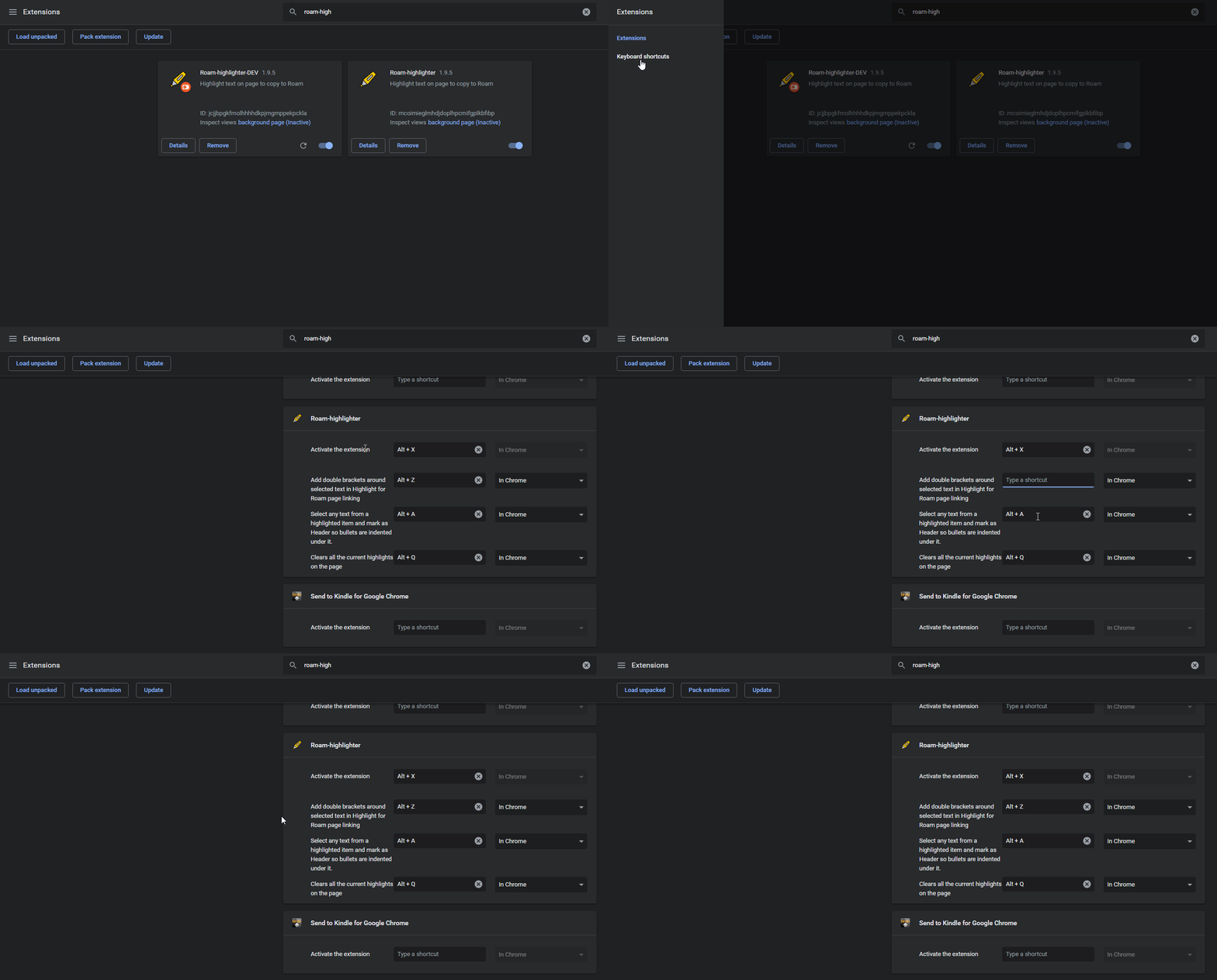
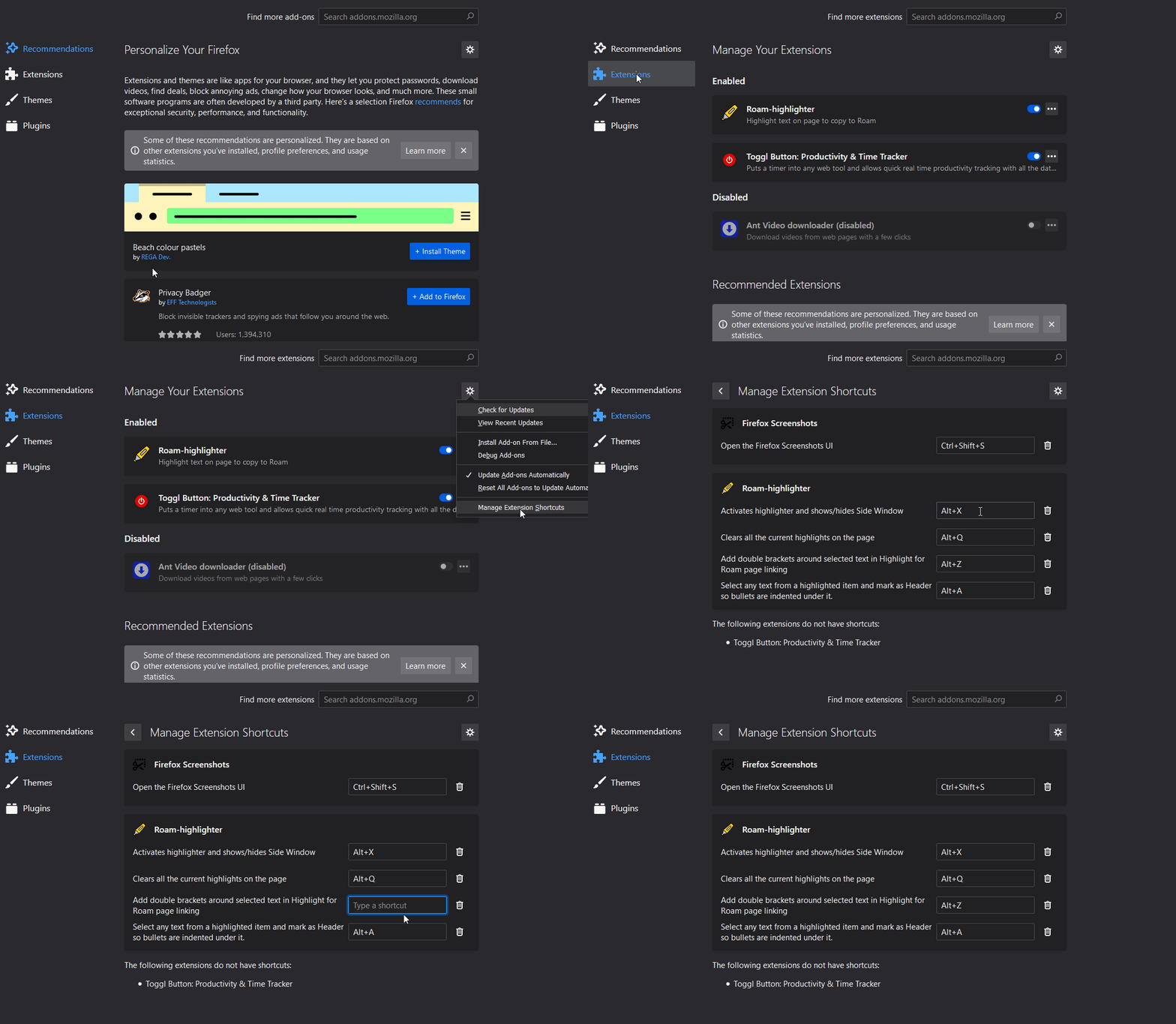
    Note: I am a Windows guy but have tried my best to test on Macs as well. The shortcuts should be compatible with both Windows and Mac, as well as Chrome and Firefox. If by chance there is an issue, you can modify the shortcuts to whatever you prefer in both Firefox and Chrome in their respective Extension settings pages. (see Demo 9 – Customizing Shortcuts)

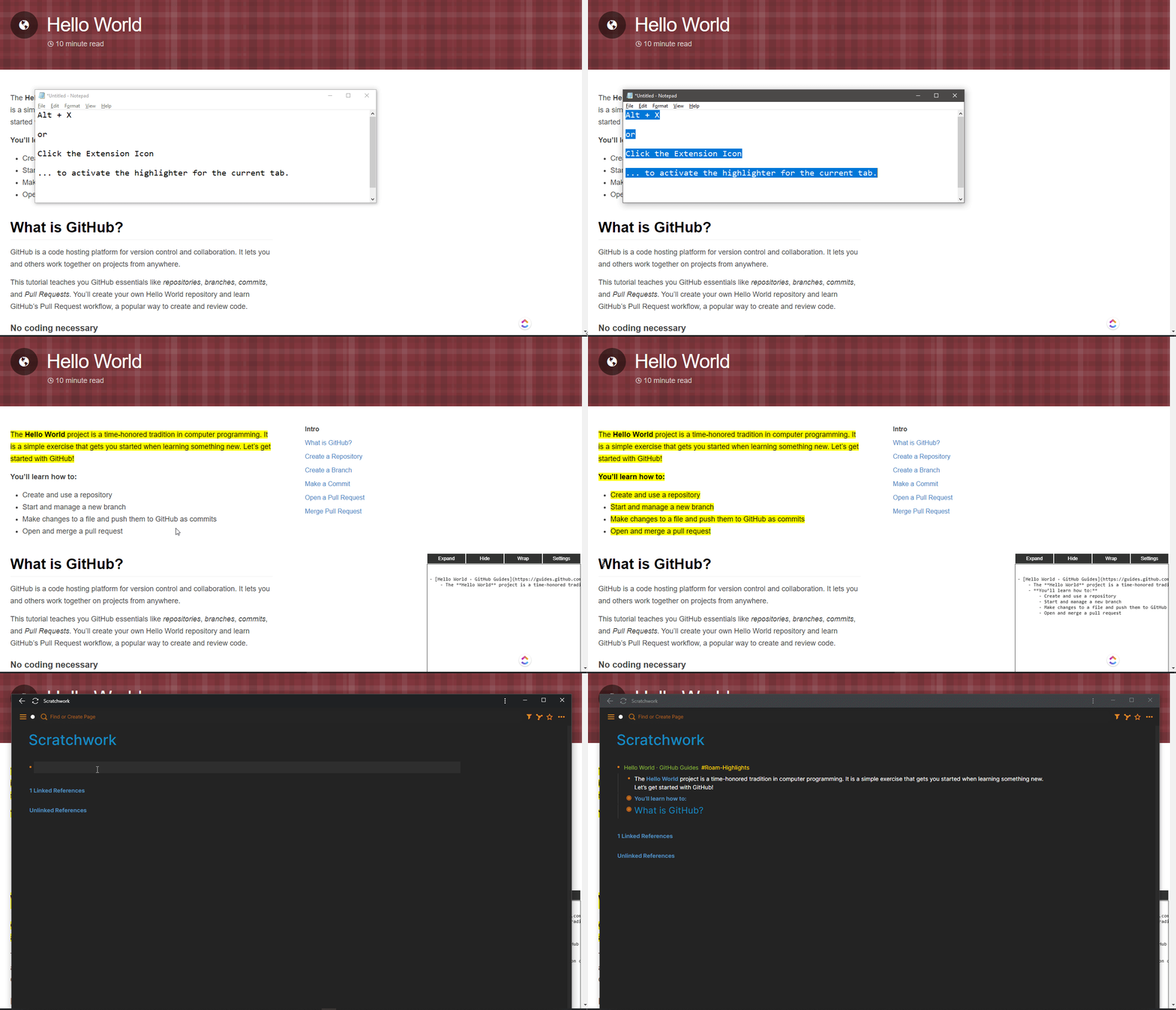
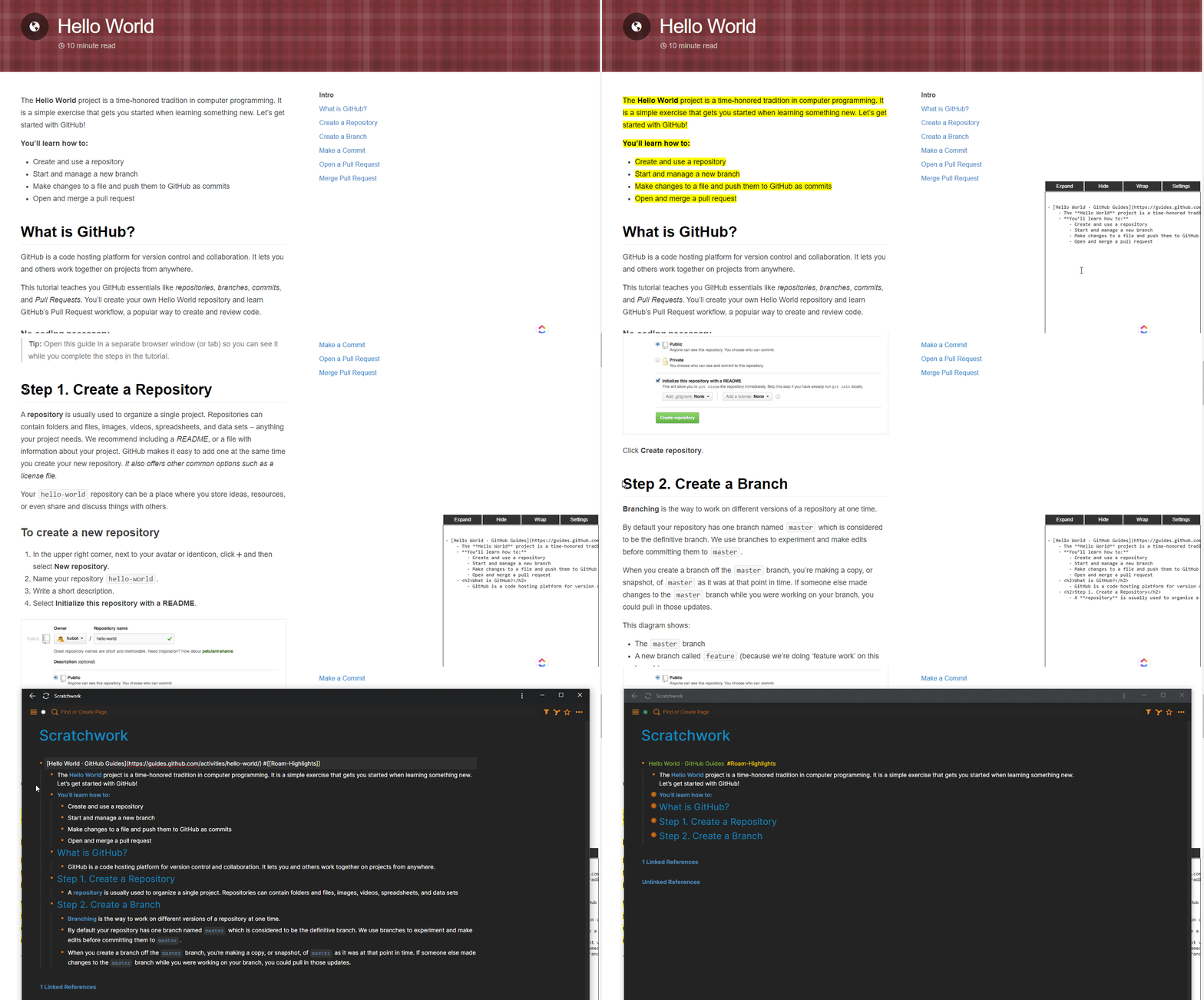
    • Press the Highlighter icon (or Alt + X) in the Extensions toolbar to activate it (only applies to the Tab you click it on)
    • Show/Hide Side Window: Alt + X to Open and Close the side window view and Settings.
    • Make Highlights: Select text from any webpage and press Ctrl + X (“cut” command) to highlight.
      • Updates and changes automatically copy to the clipboard.
      • With the new Side Window you will see changes reflected Real Time to see what it will look like in Roam.
      • Demo 1
    • Copy Page Title & URL: For a quick way to grab a Link to a page in the [ Page title ] (URL) format for Roam without any highlights, simply use Ctrl + X without any Selection/Highlights and it will copy [ Page title ] (URL) to the clipboard.
      • Additionally, when you first activate the Highlighter with Alt + X or by Clicking the Extension Icon, by default the [ Page title ] (URL) will be saved to your clipboard for quick/easy pasting into Roam.
    • Headers, Bullets, and nesting
      • Demo 6 – Headers and Bulleted/Numbered Lists auto nest/indent.
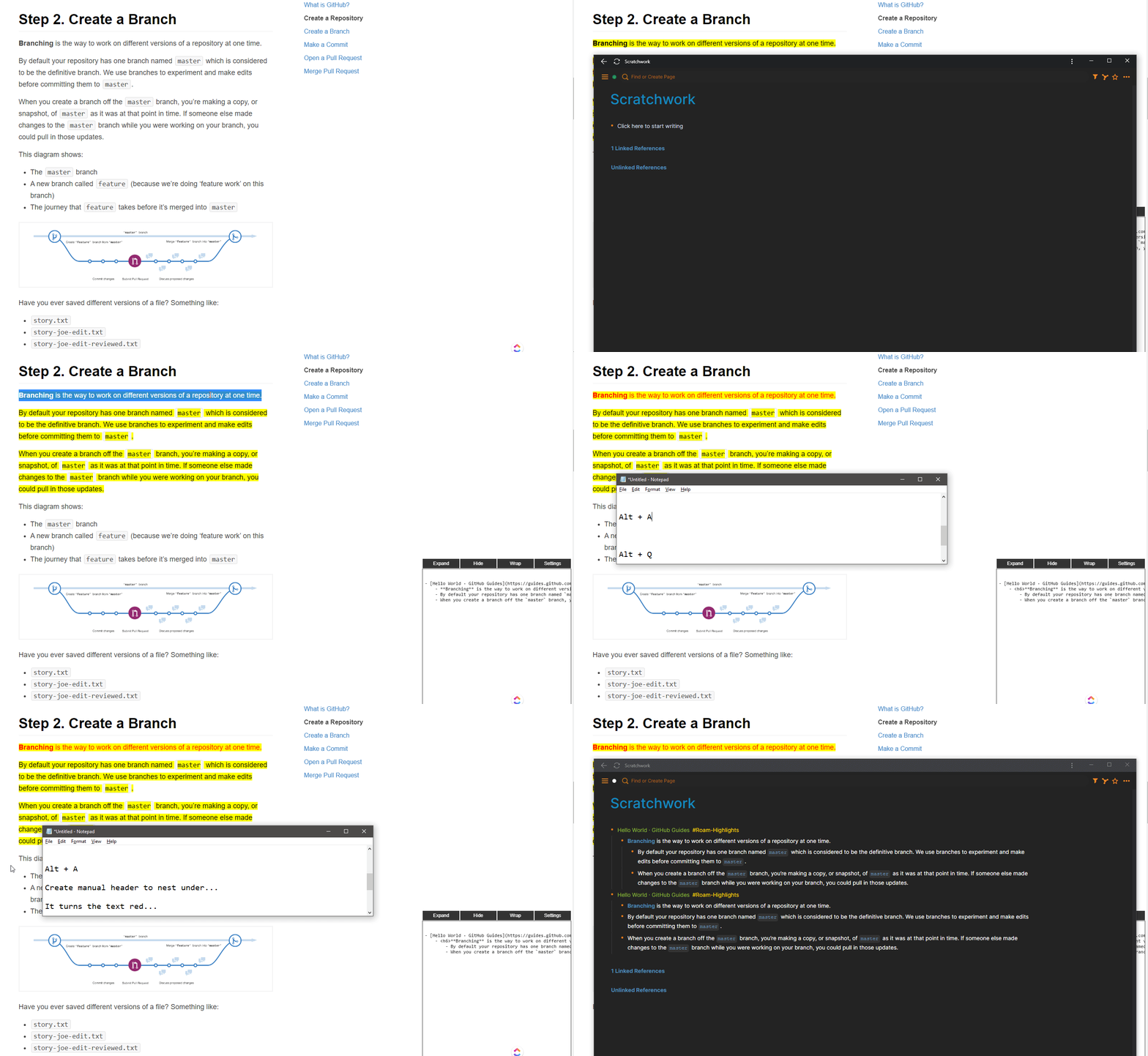
      • Demo 7 – Manually add “header” by selecting a highlight and pressing Alt + A which nests bullets after it.
    • Removing Highlights
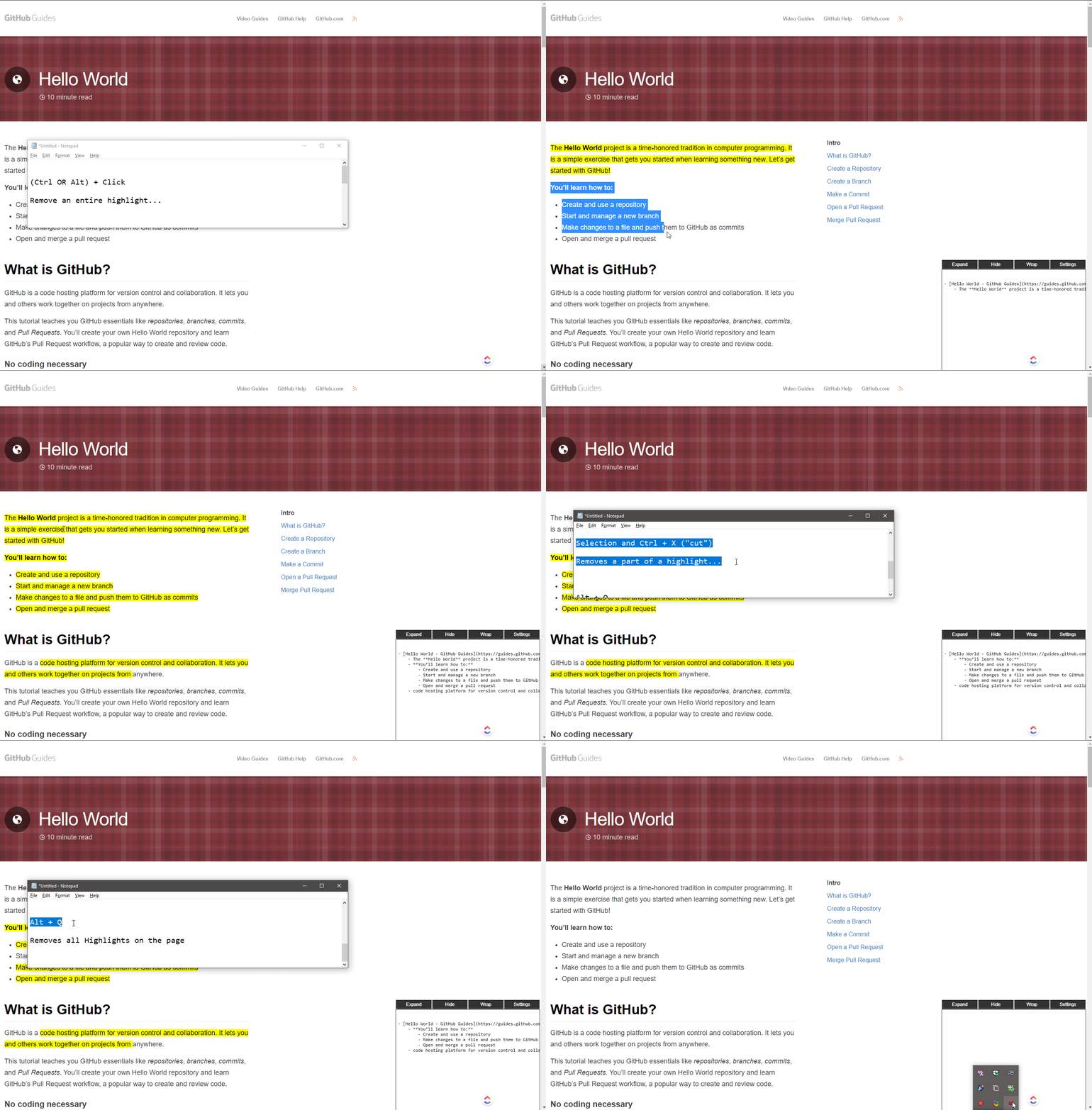
      • Single Highlight: To remove a highlight use Ctrl + Click (Windows) or Alt + Click (MAC or Windows). This will remove all “parts” (links, bullets, line breaks, etc.) of a section you Highlighted.
      • Part of a Highlight: If you just want to remove a “part” of a Highlight (e.g., single bullet in a list), you can select the text of that “part” and press Ctrl + X (“cut” command) to remove it, while preserving the rest of the Highlight.
      • ALL Highlights: Pressing Alt + Q will ask for confirmation to remove all Highlights from the current page. Or use the button from the Settings window.
      • Demo 2
    • Adding [[Double Brackets]] for Page Linking/References in Roam
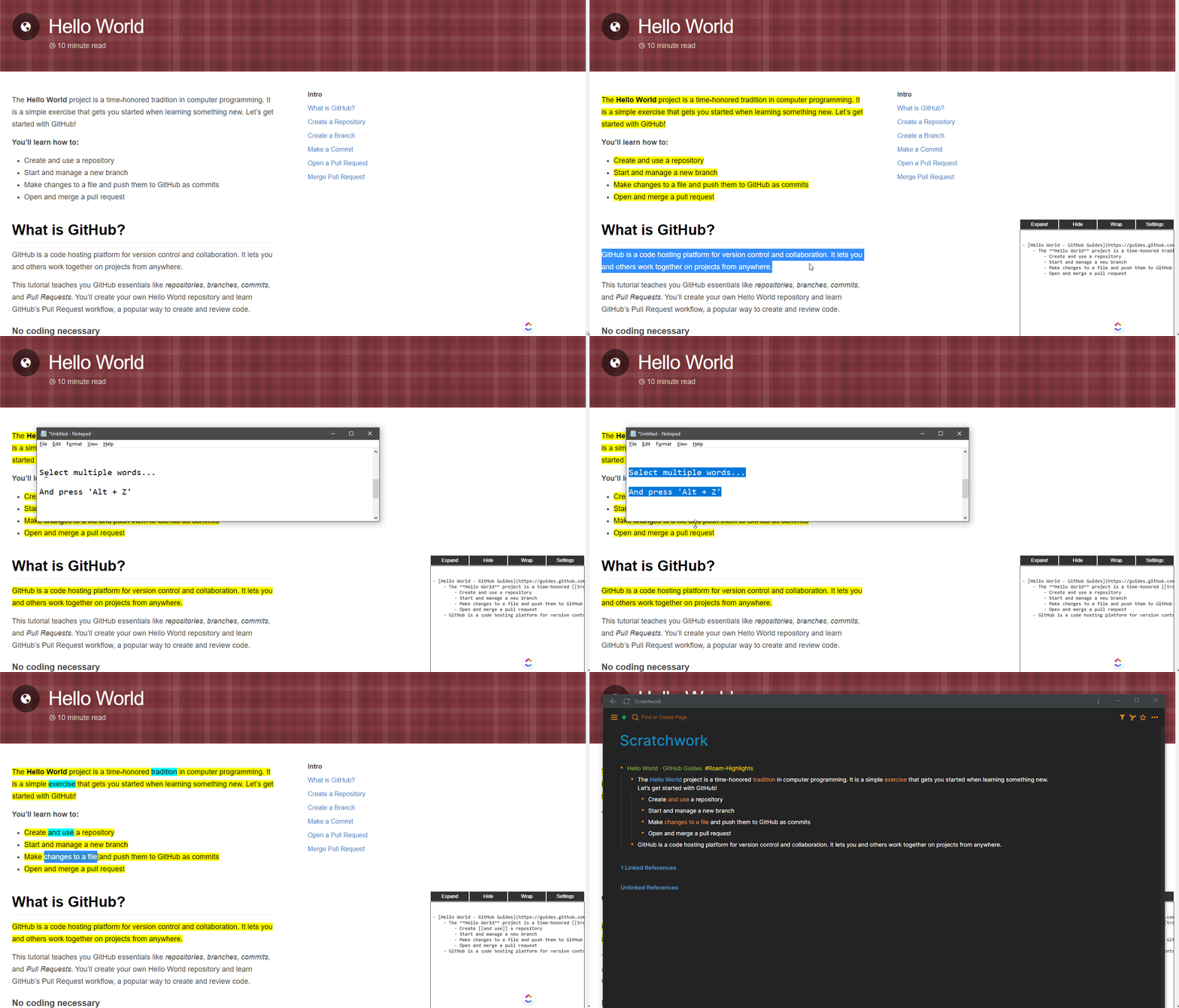
      • For text that is already highlighted in Yellow, you can have [[Double Brackets]] added for Page Linking in Roam.
      • Anything you choose to have [[Double Brackets]] added to will be highlighted in Blue. See the following:
        • Single Word: Double-Click a single word to add to Roam like: [[DoubleClickedWord]]
        • Multiple Words: Select multiple words from previously highlighted (Yellow) text and press Alt + Z to add to Roam like: [[Multiple Words]]
        • Removing Linked References: Ctrl + Click (Windows) or Alt + Click (MAC or Windows) any of the Blue highlights (page references) to turn it back to Yellow. [[Double Brackets]] will no longer be added.
      • Demo 4
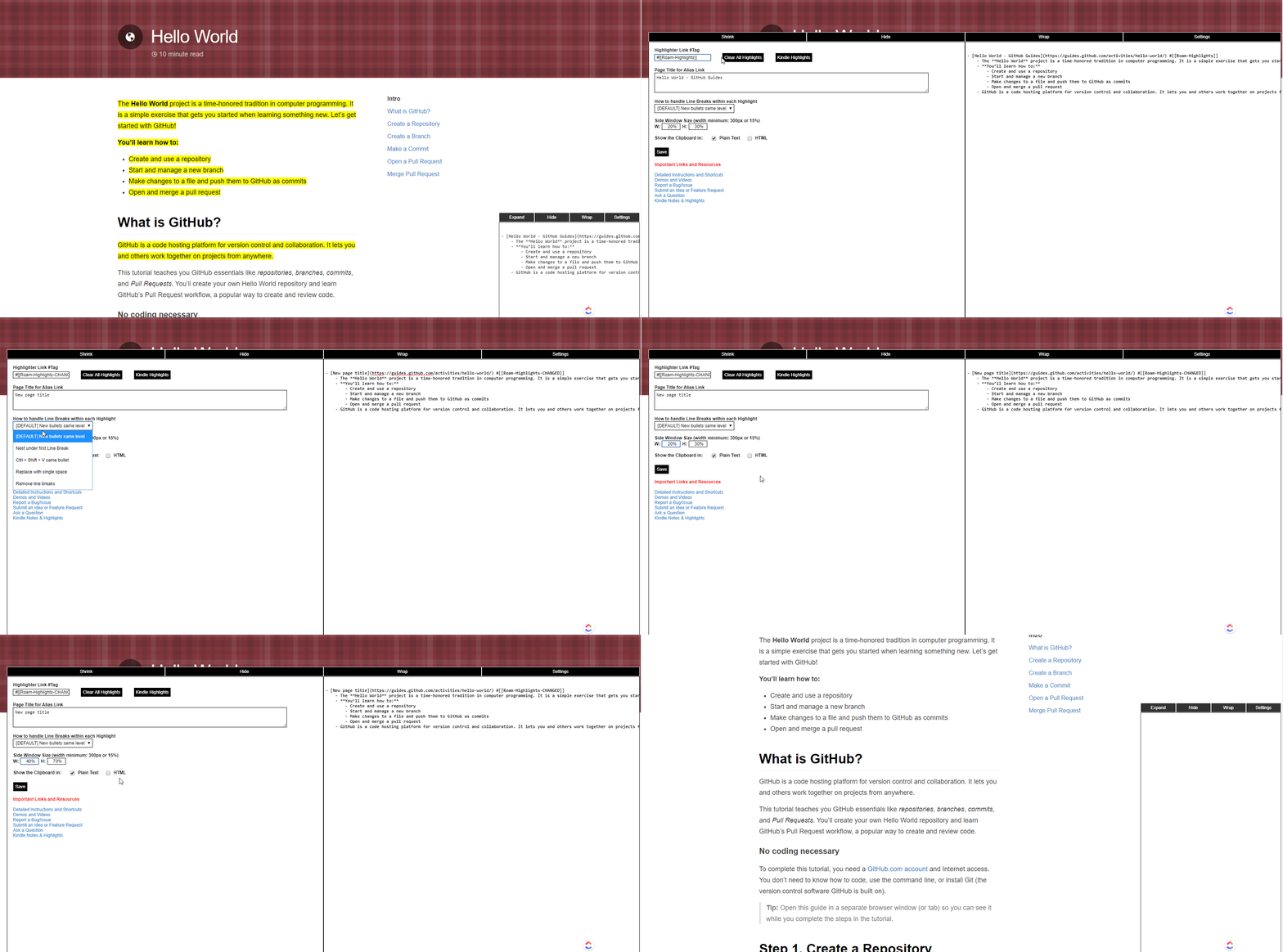
    • Change Settings: Open the Side Window with Alt + X and click the Settings button.
      • Demo 5
      • Highlighter Link #Tag: #[[Roam-Highlights]] is the Default which is added to the Parent Block as [ Page title ] (URL) #[[Roam-Highlights]]
      • Page Title for Alias Link: The Browser Page Title is the Default which is used in the Parent Block as [ Page Title ] (URL)
      • How to handle Line Breaks within each Highlight: Demo 3
        • Options for handling Line Breaks (e.g., paragraphs, bullets, new line characters, etc.) within a single Highlight (see Demo #3 below)
        • If you don’t like the way Line Breaks are handled by default, here are the options you can switch between:
          1. New bullets same level: This is the DEFAULT Setting. Line breaks will create new bullets at the same hierarchy/level.
          2. Nest under first Line Break: Line breaks will create new bullets, but nested underneath the first Line of each Highlight.
          3. Ctrl + Shift + V same bullet: Line breaks within a Highlight will stay in the same block/bullet but preserve each Line Break as if you added a soft line break with Ctrl + Enter like how pasting with Ctrl + Shift + V works in Chrome.
          4. Replace with single space: Line breaks are replaced with a single space (i.e., ” “) for concatenation into a single block/bullet.
          5. Remove line breaks: Line breaks are completely removed and NOT replaced with any characters which concatenates the Highlight into a single block/bullet. Note: If there isn’t already other “white space”, this could cause the last word from the first line to be merged with the first word of the second line.
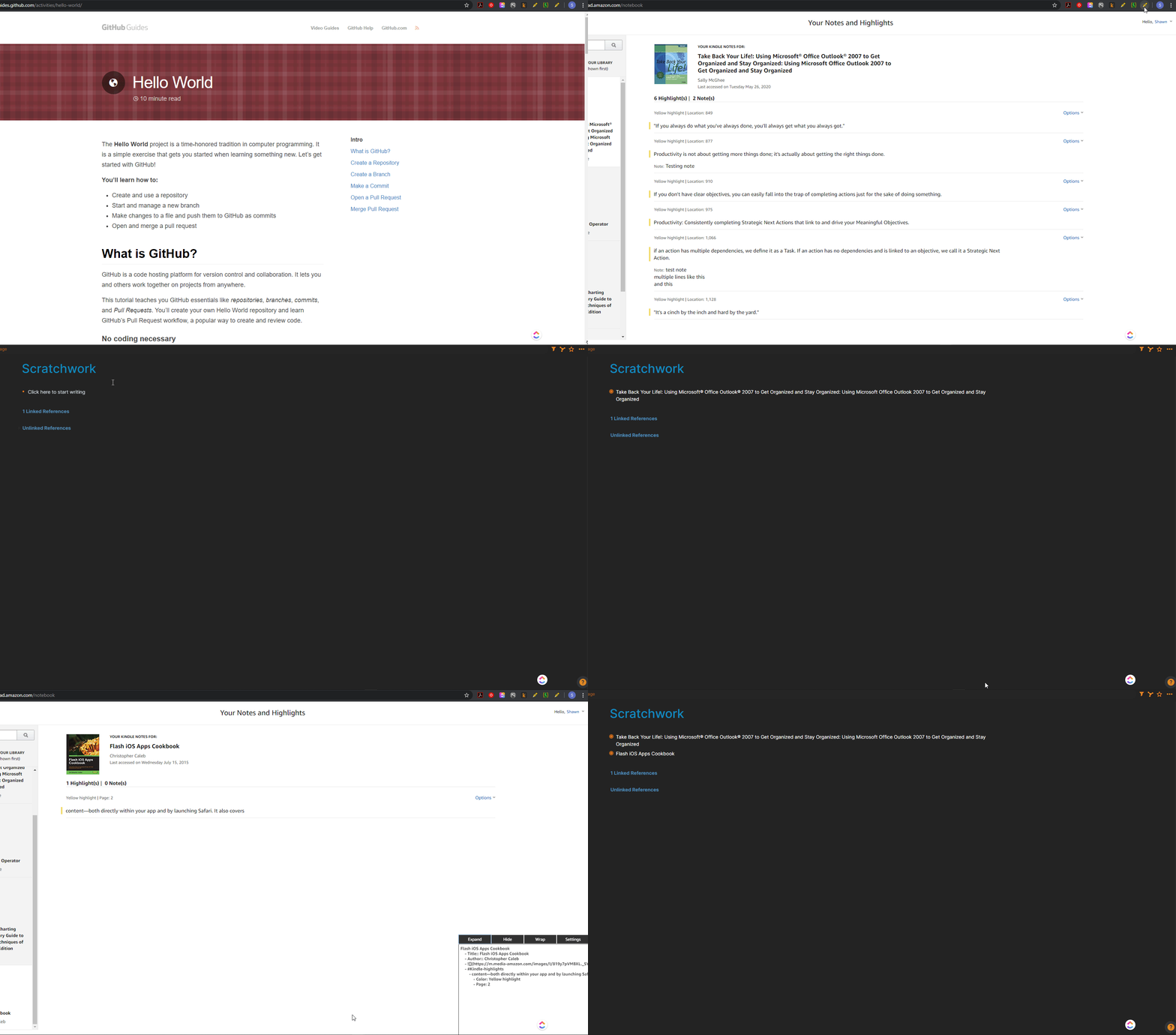
    • Kindle Notes & Highlights Extraction: Demo 8

    If you have any issues, questions or feedback for improving the instructions, please Open a GitHub Issue and post your thoughts. Thanks and enjoy!

    Demo 1 – Activate the Highlighter Extension and perform a simple Highlight

    Demo 2 – Removing highlights

    Demo 3 (Need to Record) – Options for handling Line Breaks in a Highlight

    Demo 4 – Selecting words from a highlight for Roam “page linking”

    Demo 5 – “Side Window” Settings

    Demo 6 – Auto indents bulleted lists and Headers

    Demo 7 – Manually add “Header” to nest under

    Demo 8 – Extract highlights and notes from Kindle

    Demo 9 – Customize shortcut keys in Chrome and Firefox

    Release Notes

    v1.9.7.2

    Not many new features but a ton of optimization and fixes for some minor formatting issues that folks have been sending me. I think we are very close to having something that should be pretty darn accurate even with weird websites / HTML!!

    • Added logic to double bracket link each author from Kindle books if there are multiple authors, but all still tied to the author:: attribute
    • Changed the default settings dropdown to apply “onChange” so you no longer have to use the RESET/SET box.
    • The Save button in Settings is greyed out when nothing to save, but whenever you change a setting and it needs to be saved the Save button turns blue and is clickable.
    • BIG improvements on annoying line break issues with messy HTML / webpages. I think it should be very accurate going forward.
    • Added link to YouTube DEMO / instructions to the side window startup.
    • Fixed some HTML / CSS / Visual issues with the side window / settings window on some websites with weird HTML / CSS rules.
    • Fixed some complex bullet/header nesting issues.
    • Fixed some issues when triple clicking to select an entire paragraph. It would sometimes overflow and catch/highlight part of the next paragraph.
    • Fixed issues with <a> links back to back which was causing to move the second to the next line/bullet.
    • Fixed some minor other random stuff.

    v1.9.7.1

    • Fixed issue when triple clicking paragraph to select entire paragraph to highlight (now works nicely)
    • Added dropdown selection for how to handle page links/refs “Case” (lower, upper, capitalize all words, capitalize first word, as is on page)
    • Fixed window size positioning that was cutting off the side window on smaller screens
    • Fixed handling of outlook webmail bullets

    v1.9.7

    • Obsidian settings added (see forum)
    • double brackets around author for kindle highlights.
    • Checkbox next to page title in case you only want highlights and don’t want/need the title/URL link at top.
    • truncate option to put character(s) in textbox to shorten page title to location of first occurrence (e.g., “- “ to remove stuff after)
    • clear out formatting boxes like bold, italics, etc. and uncheck Headers to just bring in text results without any formatting (nesting/indents for headers still applies).
    • For Kindle extraction un-checking the page title checkbox will remove the first bullet nesting under the title of the book and just start with the attributes in root of page/bullets
    • When activating highlighter the page/URL is auto added to clipboard to use for quick grab of “bookmark” without any highlights.
    • Fixed some other random issues identified by folks.

    v1.9.5

    • Implemented auto indenting/nesting for Bullets/Lists
    • Kindle highlights/notes extraction
    • Customizable shortcut keys now through Chrome and Firefox native settings – DEMO 9
    • Fixed a few issues with wikipedia / wikiquotes
    • Side window view now shows tabs/headers/nested etc. so you know exactly what your paste into Roam will look like

    v1.9 released to the Chrome Store. I thought I would tell you what all was updated! I pretty much implemented everyone’s requests/features/fixes from the past week, so If I missed any, please let me know. Hopefully you guys will really like the new stuff!

    • Changes to settings will now save from Tab to Tab and Session to Session!
    • Instructions/shortcuts in side window on startup
    • Links in Settings page for resources/instructions/DEMOs (Github)
    • Only show “Plaintext” and hide HTML clipboard data (checkbox available to see both)
    • Command + S for MACs now works for show/hide of side window
    • Change width/height of the Side Window
    • If you Hide the side window, it will say hidden at startup until you choose to show it again
    • Button add in Settings to remove all highlights on page
    • Added line break setting #5 to replace line breaks with blank “” (similar to Option 4 with ” ” spaces)
    • If there is a “Header” (e.g., <H1>) element in your Highlight, the highlights after it will auto nest under it until the next Header
    • You can add your own “headers” to indent under but selecting a highlight and doing Alt + Right-Click (text will turn red). Then bullets after will indent under it until the next <H1>, <H2>, etc. header on page OR until you select another section to Alt + Right-Click as a new header to indent under.
    • Fixed removal of [[Page Reference]] blue highlights so it doesn’t remove the entire highlight
    • Fixed handling of Footnotes (e.g., on Wikipedia)
    • Updated some of the Side Window formatting
    • Remove [ ] brackets when in Links as they mess/ruine the format in Roam
    • Tweaked/fixed some additional other obscure HTML element issues discovered by users.

    Getting Started

    There are both Chrome and Firefox Extensions of the Roam-highlighter. For the time being, Firefox has to be installed “manually” (see below for details).

    • Chrome Web Store: Roam-highlighter Extension
    • Firefox won’t let us upload a public Extension until Roam is open Beta, so I created a private Extension you have to download directly:
      • Here is the link to find the newest Firefox Extension: Firefox Extension Newest Version
      • Click the “Firefox Extension Newest Version” link
      • Download the .xpi file
      • Choose to “Open” and choose “Firefox” as the program to open with
      • This process works for Windows (and I assume Macs as well)

    Contributors

    Acknowledgments

    License

    License

    This project is licensed under the MIT license – see the LICENSE file for details

    Visit original content creator repository
  • pyrawr

    pyrawr

    Python wrapper around the ThermoRawFileParser command line interface.

    This Python module uses the ThermoRawFileParser CLI to retrieve general run metadata, specific spectra, or specific XICs, directly as Python lists and dictionaries from mass spectrometry raw files. Parsing raw files to other file formats is also supported.


    Installation

    For Docker, the current user must be added to the Docker group, that is, be callable as docker run, instead of sudo docker run.

    Usage

    See full API documentation for all pyrawr functionality.

    Parse raw file to any supported output format:

    >>> from pyrawr import ThermoRawFileParser
    >>> trfp = ThermoRawFileParser(
    ...     executable="thermorawfileparser",
    ...     docker_image="quay.io/biocontainers/thermorawfileparser:1.3.3--ha8f3691_1"
    ... )
    >>> trfp.parse("OR4_110719_OB_PAR14_sSCX_fr10.raw", output_format="mzml")

    Get raw file metadata:

    >>> trfp.metadata("OR4_110719_OB_PAR14_sSCX_fr10.raw")
    {'FileProperties': [{'accession': 'NCIT:C47922', 'cvLabel': 'NCIT' ... }]}

    Query a specific spectrum:

    >>> trfp.query("OR4_110719_OB_PAR14_sSCX_fr10.raw", "508,680")
    [{'mzs': [204.8467254638672,
       262.4529113769531,
       309.53961181640625,
       ...

    Retrieve one or more chromatograms based on a query:

    >>> trfp.xic(
    ...     "OR4_110719_OB_PAR14_sSCX_fr10.raw",
    ...     [{"mz":488.5384, "tolerance":10, "tolerance_unit":"ppm"}],
    ... )
    {'OutputMeta': {'base64': False, 'timeunit': 'minutes'},
     'Content': [{'Meta': {'MzStart': 488.53351461600005,
        'MzEnd': 488.543285384,
        'RtStart': 0.007536666666666666,
        'RtEnd': 179.99577166666666},
       'RetentionTimes': [0.007536666666666666,
        0.022771666666666666,
        0.036936666666666666,
        ...

    Contributing

    Bugs, questions or suggestions? Feel free to post an issue in the issue tracker or to make a pull request! See Contributing.md for more info.

    This module currently uses Python’s subprocess.run() to access ThermoRawFileParser. There are probably much better methods that would directly access the ThermoRawFileParser library, circumventing the CLI. Suggestions and PRs are always welcome.

    Changelog

    See Changelog.

    Visit original content creator repository
  • Python-Games

    Python Games

    GitHub stars GitHub license GitHub forks Visits Badge Created Badge Updated Badge

    All games made in Python – Pygame, Tkinter and Turtle

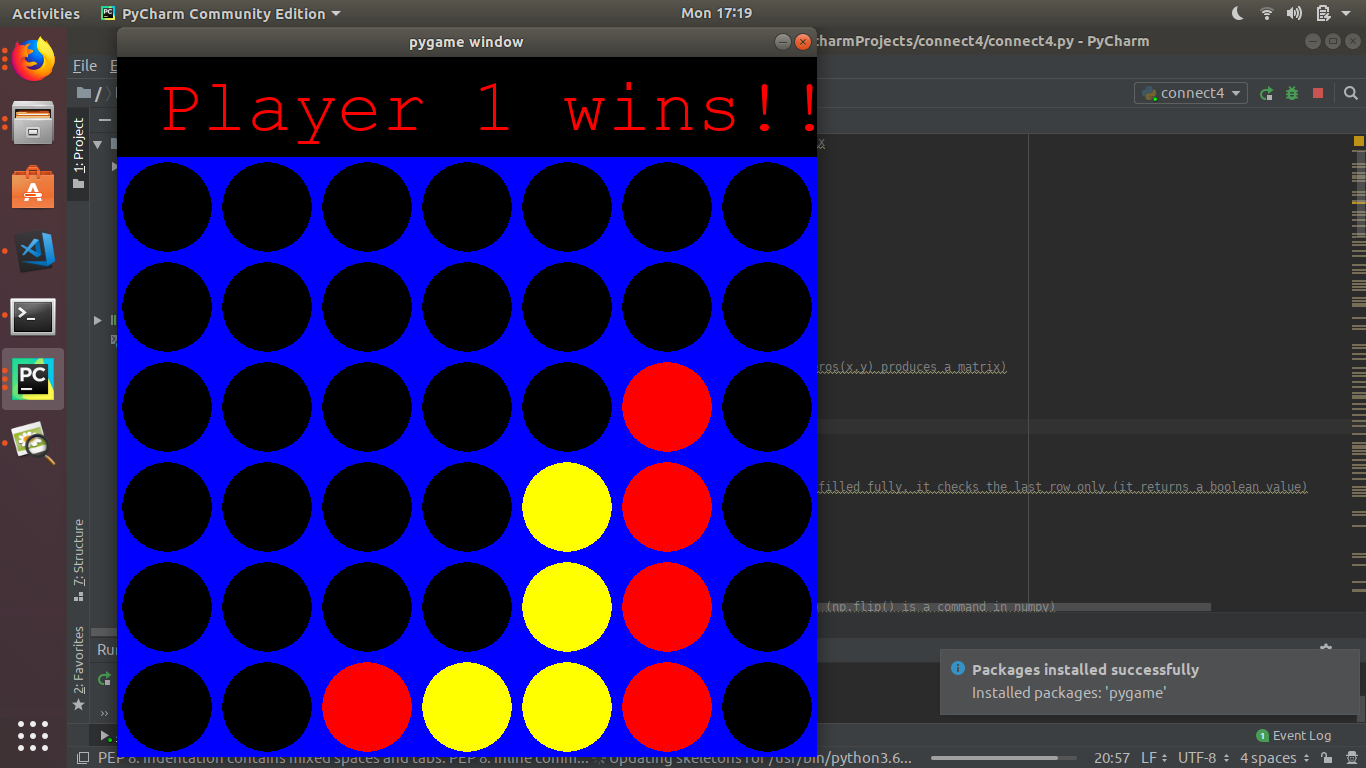
    1. Connect 4

    • For making this game I have used the pygame module. Connect4 is a two-player connection game in which the players take turns dropping one colored disc from the top into a seven-column, six-row vertically suspended grid. The pieces fall straight down, occupying the lowest available space within the column. The objective of the game is to be the first to form a horizontal, vertical, or diagonal line of four of one’s own discs.
    • The pieces are to be manoeuvred over the top of the board using your mouse and simply ‘left-click’ to drop the piece in the particular block.

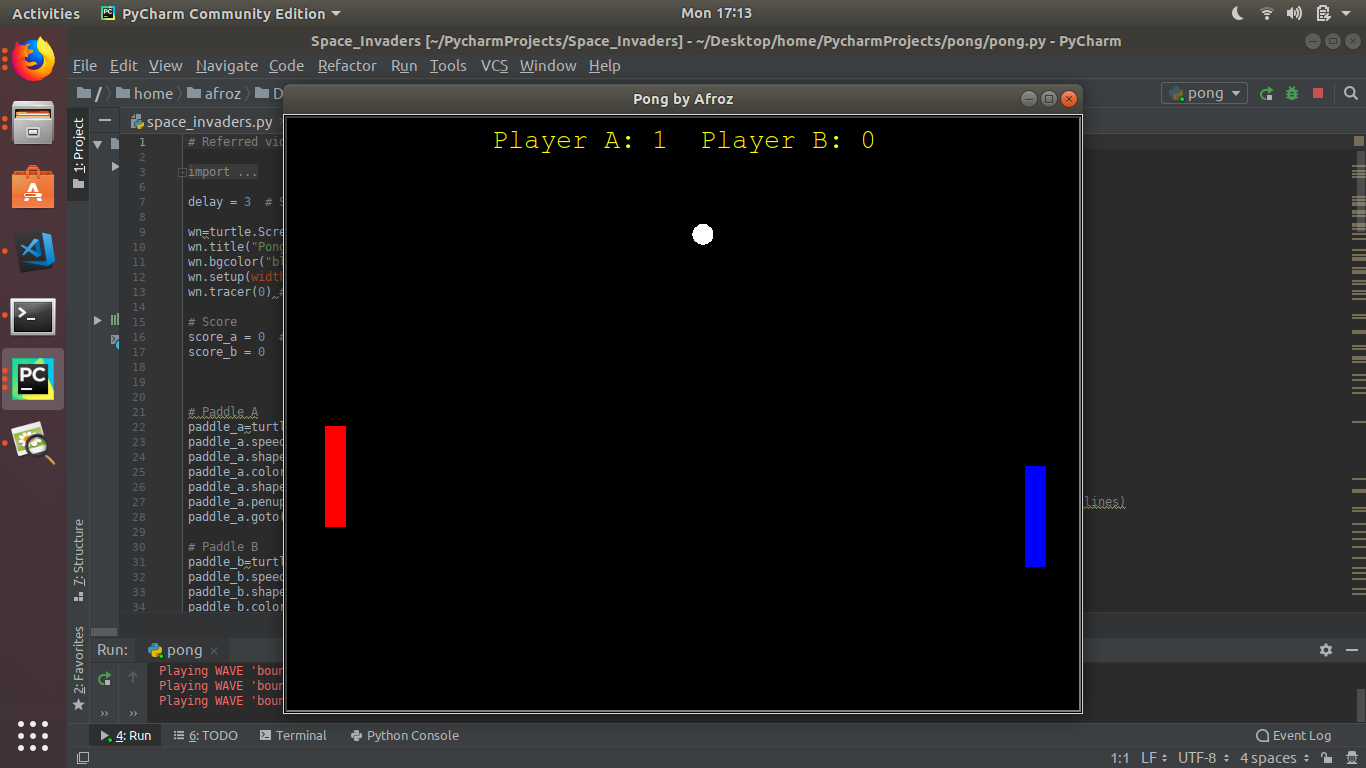
    2. Pong

    • Pong is one of the earliest arcade video games. It is a table tennis sports game featuring simple two-dimensional graphics. The Game has been designed using the turtle module.
      • Controls –
      1. The paddle for player A can be moved using w(up), s(down), a(left) and d(right).
      2. The paddel for player B can be moved using up, down, right and left arrow keys.

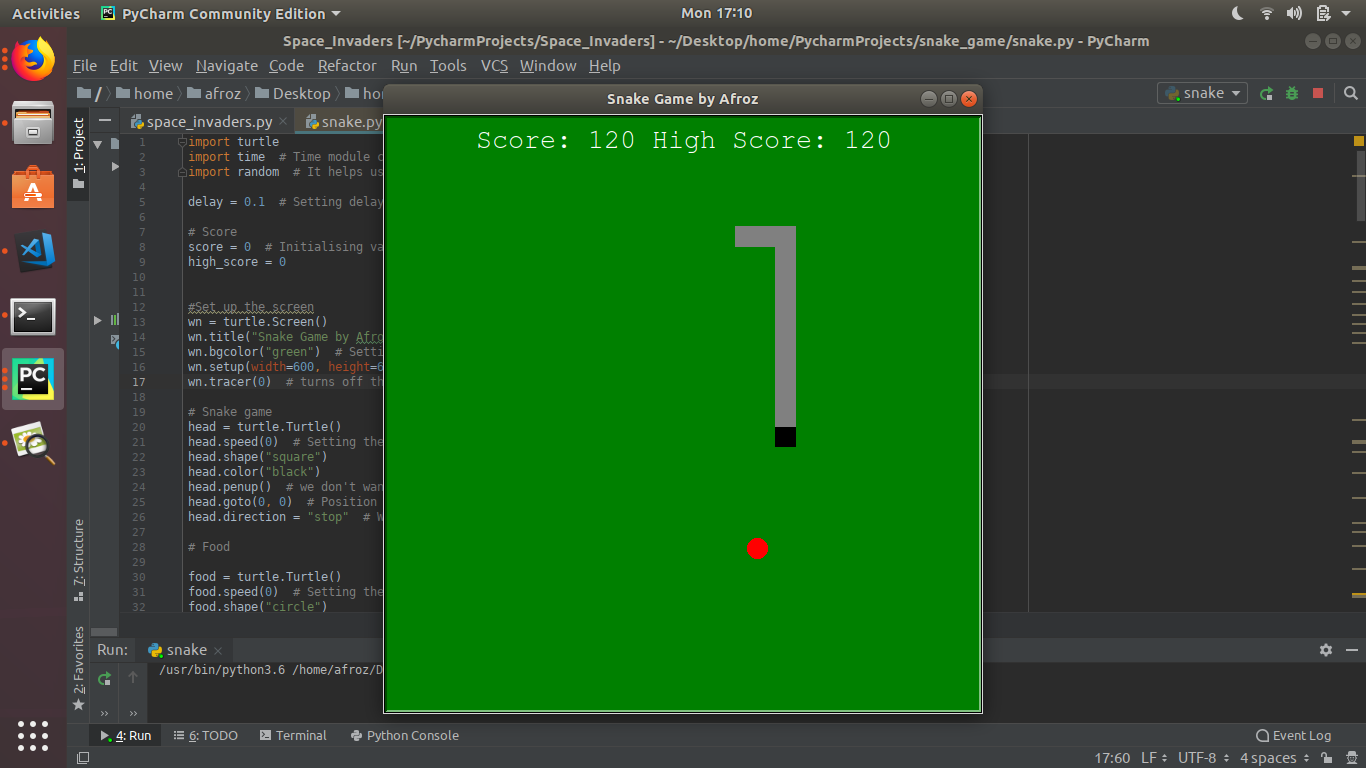
    3. Snake 2D

    • Snake is the common name for a video game concept where the player maneuvers a line which grows in length, with the line itself being a primary obstacle. This game too has been made using the turtle module.
      • Controls -The snake is to be maneuvered using the arrow keys up, down, left and right.

    4. To Do App

    • The goal was to create a simple “To do list” to keep track of the jobs you need to finish. The program has been designed using the Tkinter module (Standard GUI Library for Python).
    • This To-do-List program can perform jobs such as Adding Tasks, Deleting tasks, Sorting the tasks (Either in Ascending or Descending order), Displaying a Random Task, and Displaying the total no. of tasks currently stored in the To-do-List.

    5. Space Invaders

    • The Space_Invaders is a classic arcade game. The goal is to defeat wave after wave of descending aliens with a horizontally moving laser to earn as many points as possible.
    • Each time the bullet hits the enemy, the enemy is destroyed and the player gets a point.
    • I have added sounds for bullet fire and the bullet hitting the enemy.
      • Controls -The player can maneuver the battleship using arrow key ‘up’, ‘down’, ‘left’ and ‘right’ and can fire bullets using spacebar.

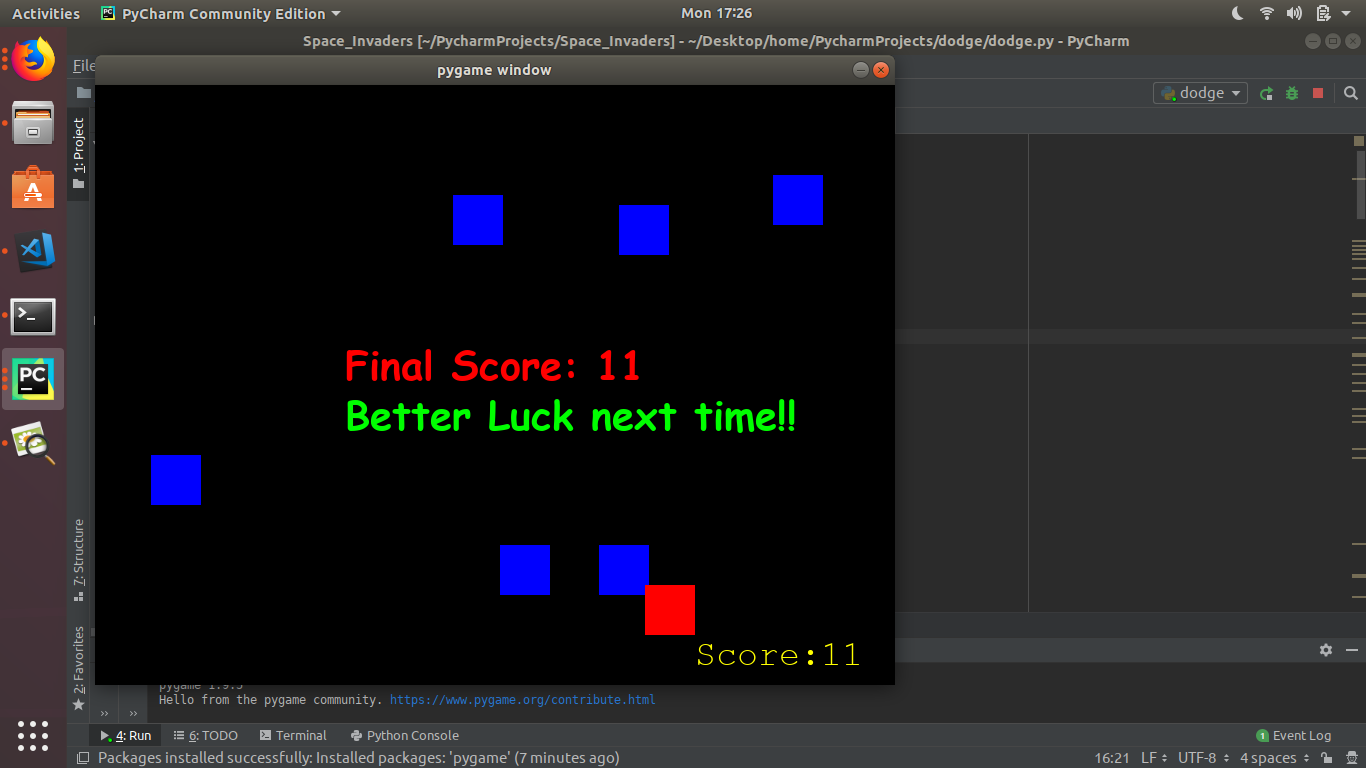
    6. Dodge

    • The Dodger game has the player control a small person (which we call the player’s character) who must dodge a whole bunch of baddies that fall from the top of the screen. The longer the player can keep dodging the baddies, the higher the score they will get.
      • Controls -The player can maneuver using the arrow keys ‘up’, ‘down’, ‘left’ and ‘right’.

    7. Client-Server Chat application

    • Created a chat server which takes in the name of the host and once the connection is set we can chat between the client and the server. The two files need to be run simultaneously.

    8. Bulk Event Certificate Generation script

    • Generate certificates in Bulk using a particular PNG file and names from excel file. The script uses an excel file with names of participants to create certificates with their name on it. Extremely helpful for those planning to run large scale events online.

    Before and After running the script

    Visit original content creator repository